7 Best Trust Wallet Alternatives in 2026
Choosing a Trust Wallet alternative starts with what you want to do differently. You may prefer a separate desktop app, clearer previews before signing DeFi transactions, or a hardware device for approving transfers.
The next step is checking your portfolio. A wallet that works well for SOL may support a different set of networks from the one you use for USDT. Your choice should fit both your everyday tasks and the assets you plan to move.
Best Trust Wallet Alternatives at a Glance
Atomic Wallet is our first pick for managing supported crypto on desktop and mobile, with transfers, swaps, and staking in one app. Exodus, MetaMask, Rabby, Phantom, Ledger, and Trezor offer other options for portfolio management, dApps, and hardware signing.
For each option below, we’ll look at what it offers someone moving from Trust Wallet and which details deserve a closer check.
According to Binance’s disclosure, Trust Wallet has been outside Binance Exchange Group’s ownership and control since May 15, 2025.
Atomic Wallet for Desktop and Mobile
Atomic Wallet is a Trust Wallet alternative for users who want a standalone desktop app alongside mobile access, with transfers, swaps, and staking in one place.
Our desktop app lets you review balances, receive crypto, send payments, and exchange supported pairs from your computer. You can also stake eligible assets through the app. To access the same Atomic wallet on another device, restore it using your 12-word backup phrase.
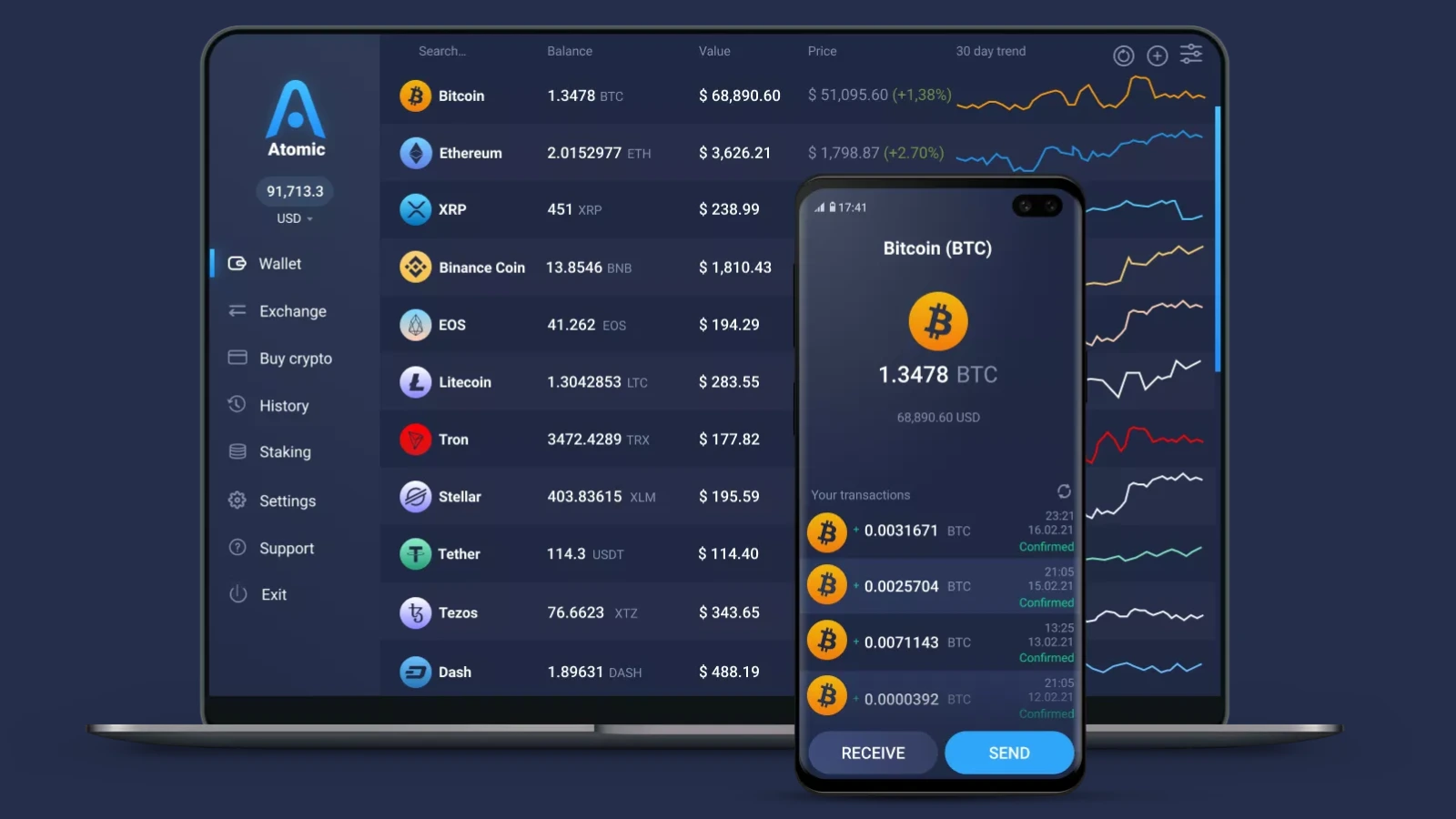
For someone switching from Trust Wallet, the main appeal is managing a supported portfolio through a dedicated desktop application. Check the exact networks you hold, especially for assets such as USDT that exist on several blockchains.
Swaps use integrated providers, so review the quoted amount, fees, and availability for your chosen pair. If you plan to restore an existing Trust Wallet phrase, verify that Atomic derives the addresses you expect. We cover that process in the switching guide below.
Atomic’s current app has no native Ledger or Trezor integration. Users who need hardware signing should include that requirement in their comparison.
Exodus for Portfolio Management
Exodus suits Trust Wallet users who want a desktop portfolio app, integrated swaps, and access to accounts secured by compatible hardware wallets.
Exodus is available on Windows, macOS, Linux, iOS, and Android. Its portfolio interface brings supported balances and transaction activity together, while integrated services let you exchange assets and access other features from the app.
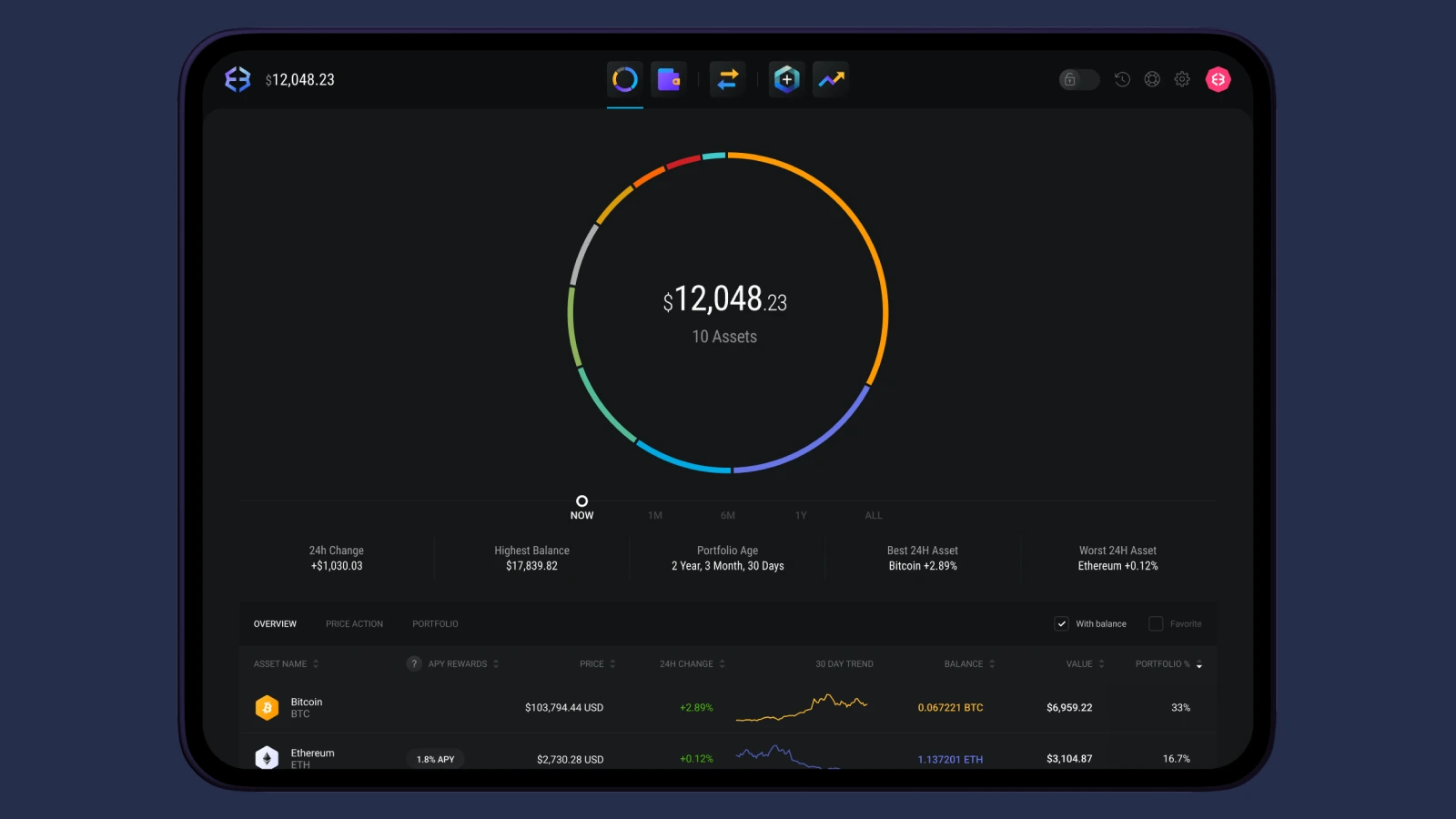
Hardware connections differ by platform. Exodus supports compatible Trezor devices on desktop and Ledger devices on mobile, so check the combination of wallet model, device, and asset you intend to use.
Exodus discontinued its Web3 browser extension on October 1, 2026. Its desktop and mobile apps are the relevant options when comparing it with Trust today. For someone who mainly manages balances and makes transfers, that may fit their routine. Someone replacing Trust’s browser extension should assess how the change affects their access to dApps.
MetaMask for dApps and Multichain Access
MetaMask is a Trust Wallet alternative for users who regularly connect to decentralized applications through a browser extension or mobile app.
Its network support now extends beyond Ethereum and EVM chains to native Bitcoin, Solana, and TRON. That gives users more options for managing assets alongside their DeFi activity, although individual features can differ between networks and platforms.
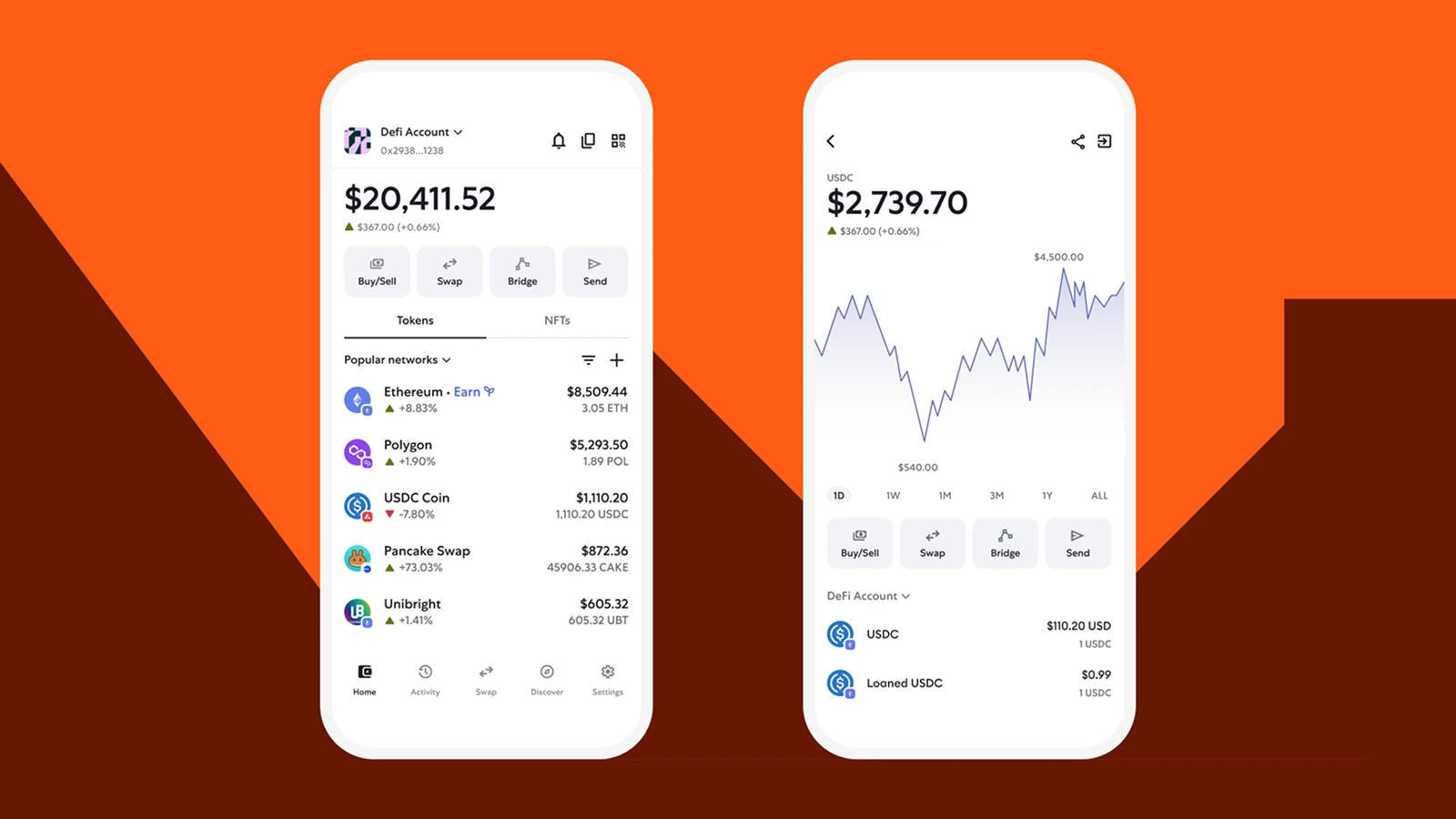
For everyday dApp use, the main consideration is whether MetaMask works with the applications and accounts you already use. You can connect to supported services, review transaction requests, and approve actions from the wallet.
Before importing a Trust Wallet phrase, check how MetaMask restores the addresses for each network. A portfolio containing several accounts or assets on additional chains may need more setup than a single Ethereum address. Hardware wallet users should also verify their device and network combination.
Rabby for EVM DeFi
Rabby is a Trust Wallet alternative for users focused on Ethereum and EVM applications who want to see a transaction’s expected effects before signing.
Its transaction simulation shows anticipated changes to your balances. If an application asks you to swap tokens or grant spending permission, that preview helps you assess what the request would allow and which assets it could affect.
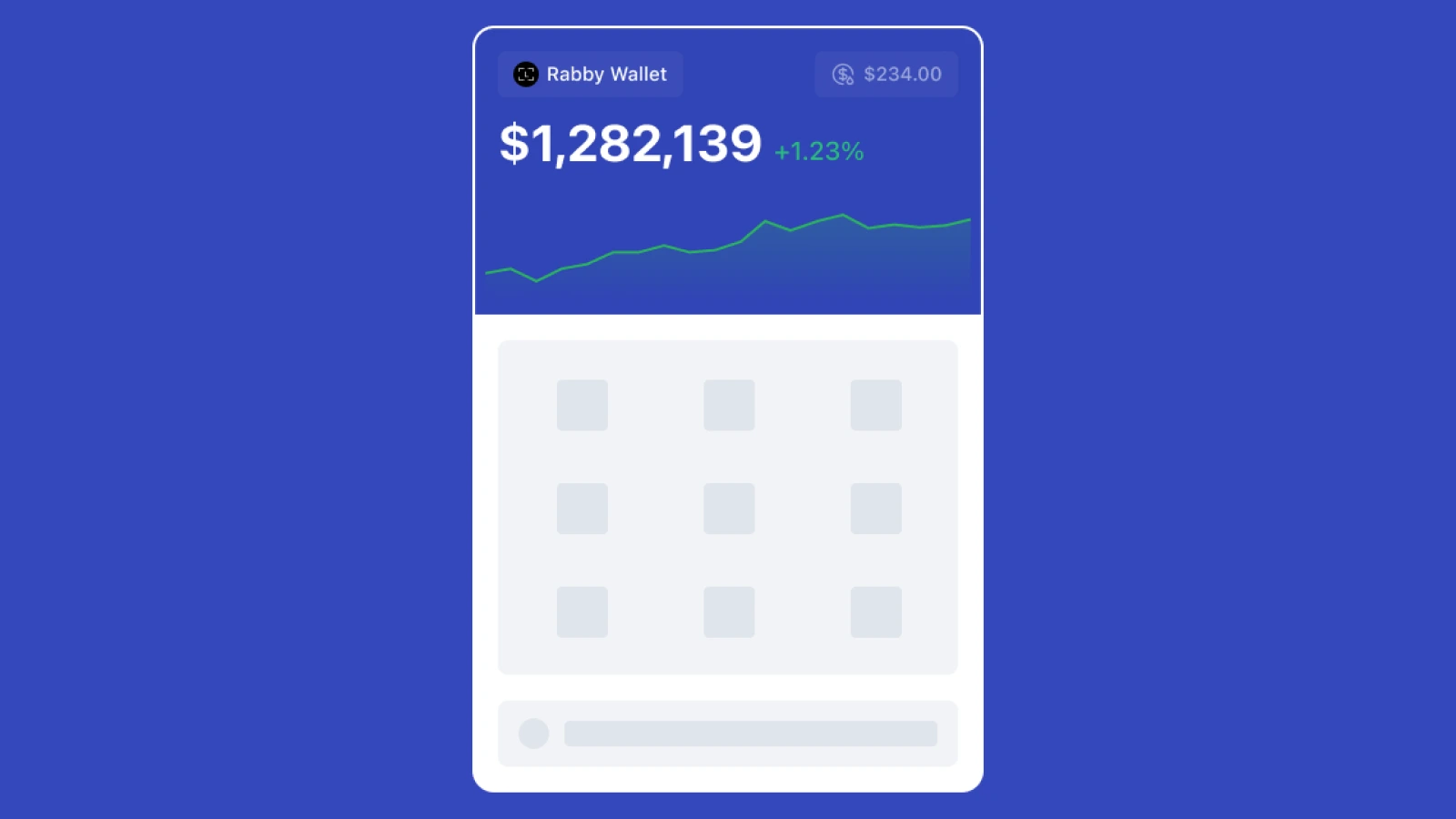
Rabby is available as a browser extension, desktop app, and mobile app, with connections for compatible hardware wallets. Its focus makes it worth considering if most of your activity happens across EVM networks and you frequently interact with DeFi protocols.
For a mixed Trust Wallet portfolio, check where each asset lives. Native BTC, SOL, and TRC-20 USDT use different networks from their wrapped or bridged versions on EVM chains. Choose a compatible wallet for each before moving funds.
Phantom for Solana
Phantom is a Trust Wallet alternative for users who mainly manage SOL, Solana tokens, NFTs, and applications in the Solana ecosystem.
Its mobile app and browser extension bring those activities together, with staking, swaps, and connections to supported dApps. Phantom also supports other networks, including Ethereum, Bitcoin, Base, Polygon, and BNB Chain, giving it a broader role than a Solana-only wallet.
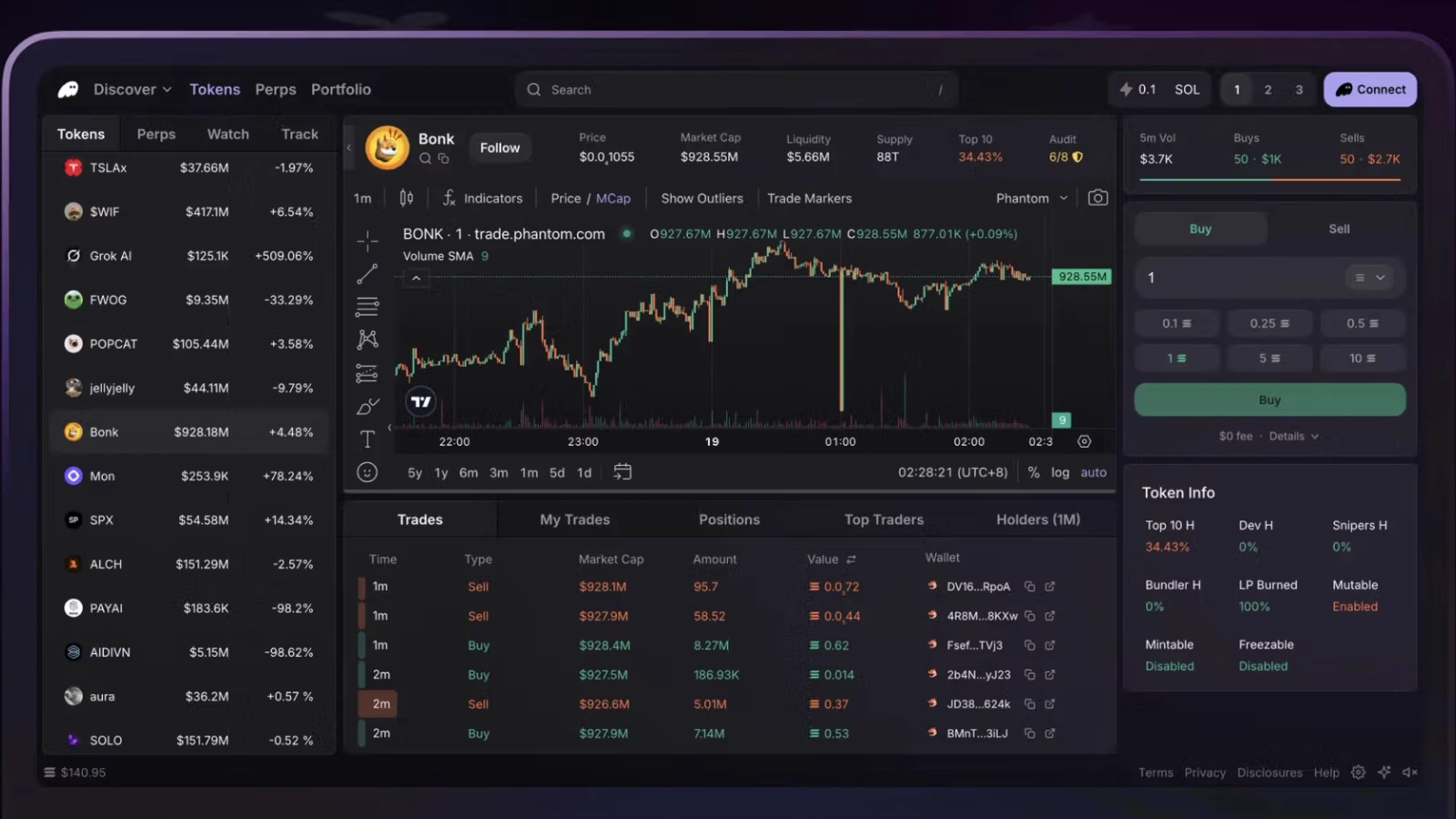
Suppose your Trust Wallet portfolio contains BTC, SOL, and USDT on TRON. Phantom supports Solana and Bitcoin, while TRC-20 USDT requires a wallet with TRON support. You could use Phantom for your Solana activity and manage the TRON balance separately.
For Bitcoin, Phantom supports Native SegWit and Taproot accounts. If you restore an existing recovery phrase, check the resulting addresses and balances to confirm that you can access the accounts you expect.
Ledger for Hardware Signing
Ledger is a Trust Wallet alternative for users who want keys generated on a dedicated hardware device and transactions confirmed on that device.
You manage supported accounts through the Ledger Wallet companion app or compatible third-party software. The device signs transactions, while the connected application provides the interface for balances, receiving addresses, and transaction requests.
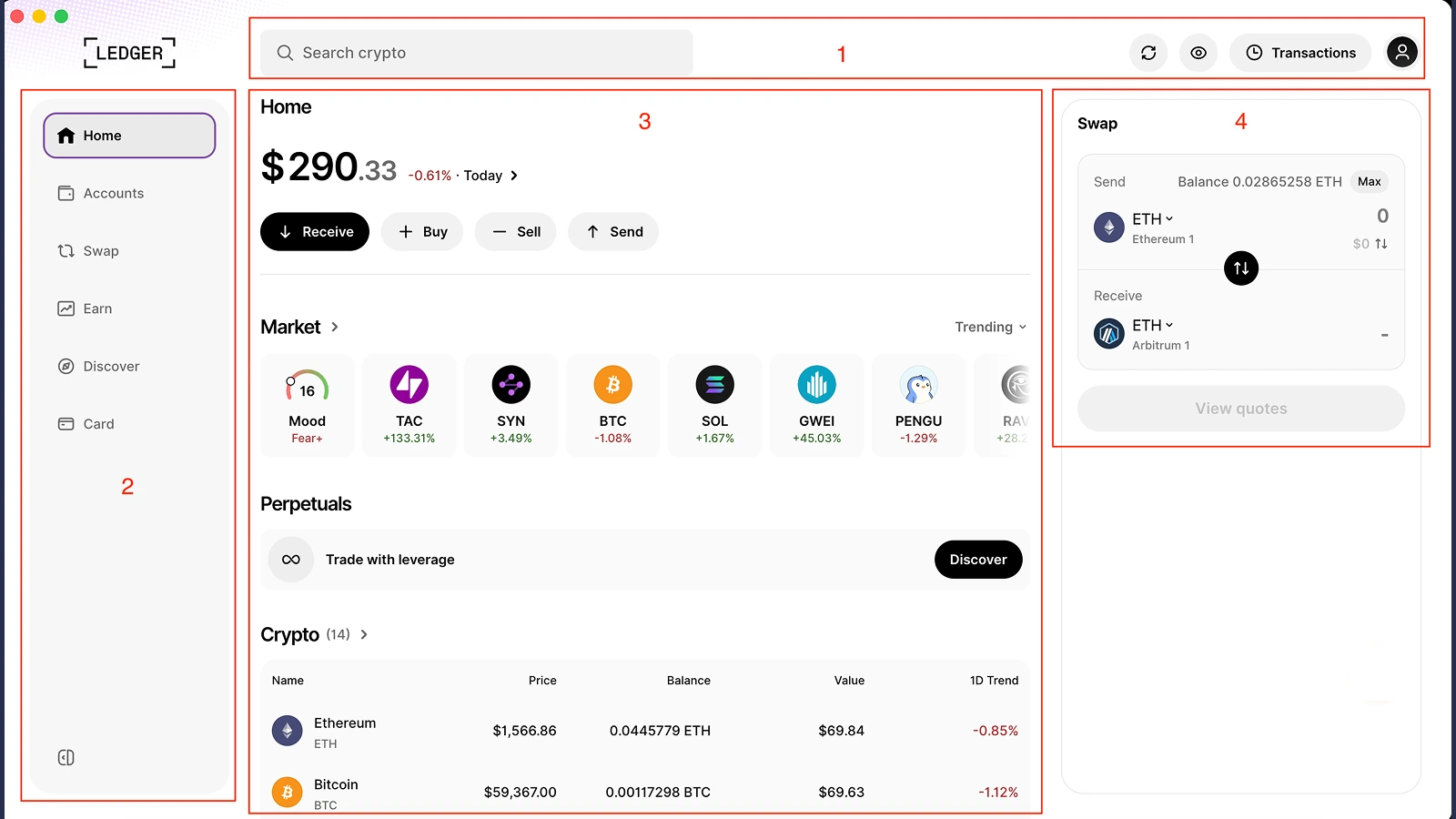
Ledger supports assets across multiple networks, including USDT on Ethereum and TRON. Check the specific asset, network, and application you intend to use, along with your chosen device’s connectivity.
Trust Wallet’s browser extension can itself connect to Ledger for supported Bitcoin, Ethereum, and Solana accounts. This gives existing Trust users a way to add hardware signing while keeping a familiar interface.
To begin with keys generated on the Ledger device, create a new wallet during setup and transfer assets from Trust Wallet to its receiving addresses. Device cost, connection options, and compatibility with your phone or computer all belong in the decision.
Trezor for Hardware Storage
Trezor is a Trust Wallet alternative for users who want to manage crypto through Trezor Suite while keeping their keys on a dedicated hardware device.
Trezor Suite provides the interface for checking balances, receiving assets, and preparing transactions. You review and confirm outgoing operations on the device. The model you choose determines which assets and connection options are available.
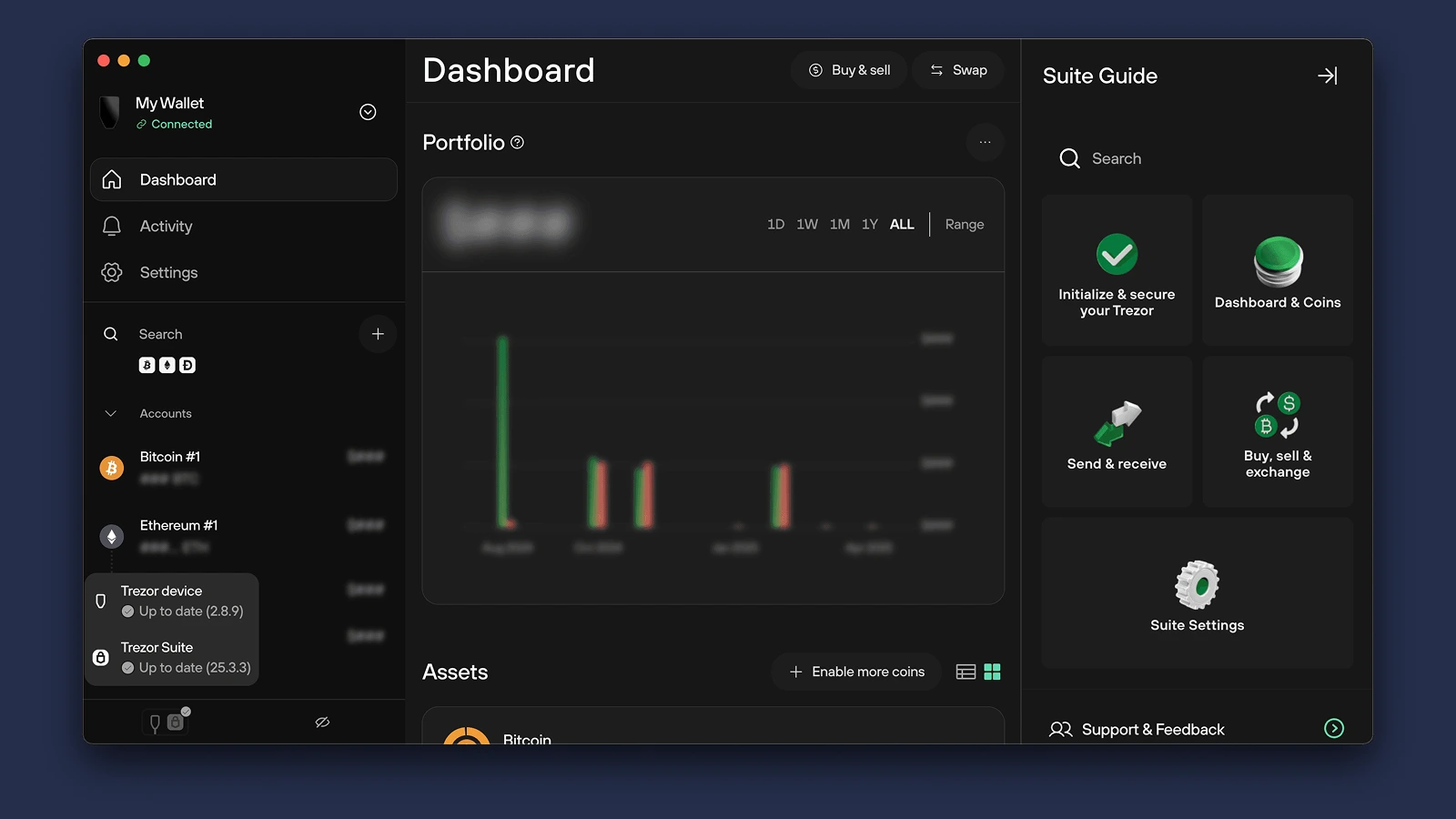
Supported networks include Bitcoin, Ethereum, Solana, and TRON, with TRON added to Trezor Suite in June 2026. Check compatibility for your specific model and token before transferring from Trust Wallet.
When switching, you can create a new wallet on the Trezor device and move supported assets to its receiving addresses. Include the device price, backup method, and compatibility with your computer or phone when comparing it with a software wallet.
Atomic Wallet vs. Trust Wallet
Atomic Wallet offers a standalone desktop app alongside mobile access. Trust Wallet combines a mobile app with a browser extension, including Ledger connections for supported accounts.
Before restoring a Trust Wallet phrase in Atomic, compare the receiving addresses for the assets you hold. Recovery compatibility depends on how each application derives and discovers accounts, so matching the phrase is only one part of the check.
How to Switch From Trust Wallet
You can switch by restoring your existing wallet in a compatible app or by creating a new wallet and transferring your assets to new addresses.
Import Your Existing Wallet
Importing a recovery phrase gives another application access to the accounts it can restore. Your assets remain at their existing blockchain addresses.
- Check compatibility. Confirm that the new wallet supports your recovery phrase format, assets, and networks. Atomic Wallet uses a 12-word backup phrase
- Restore through the official app. Enter your recovery phrase only in the verified wallet application
- Compare addresses. Check the receiving addresses against those shown in Trust Wallet for each network
- Check your balances and positions. Review tokens, NFTs, staking, and DeFi holdings, including any additional accounts you used
A different address can explain why an imported wallet appears empty. Check the account and network before taking further action. Existing token approvals and onchain positions remain associated with the original addresses.
If your recovery phrase may have been exposed, create a wallet with new keys and transfer your assets using the process below.
Token spending permissions are recorded on the blockchain. If you restore the same address in another wallet, its existing approvals remain active. Disconnecting from a dApp leaves those approvals in place too, so review spending permissions separately when changing how you manage the account.
Create a New Wallet and Transfer Assets
A new wallet generates new recovery credentials and receiving addresses.
- Create and back up the wallet. Store its recovery phrase securely offline
- Match the asset and network. Open the receiving address for the exact version you hold in Trust Wallet
- Send a small test transfer. Confirm it arrives and that you can access it
- Move the remaining assets. Keep enough of the network’s fee asset to complete any outstanding transfers
Handle NFTs, staking, and DeFi positions individually. Staked or deposited assets may have withdrawal conditions or waiting periods that affect when you can move them to a new address.