What Is Solscan? How to Use the Solana Explorer
What Is Solscan? How to Use the Solana Explorer
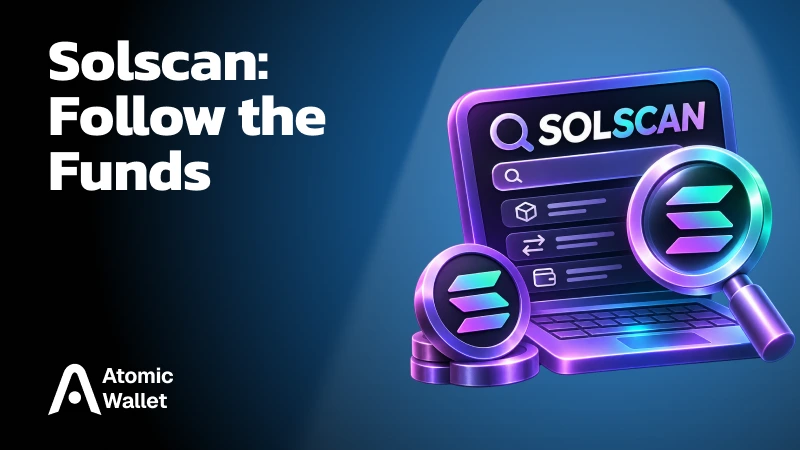
Solscan lets you check what happened to your crypto on Solana. You can look up a transfer, inspect a wallet’s holdings, or research a token using public blockchain data.
For a basic lookup, all you need is a wallet address or transaction signature. Open the explorer, paste it into the search bar, and review the results. You can check whether a transaction succeeded, which assets moved, and how much the network charged—without importing your wallet or sharing your recovery phrase.
What Is Solscan?
Solscan is a blockchain explorer for Solana that lets you search transactions, wallet addresses, tokens, and programs.
It organizes public blockchain records into readable pages. Instead of working through raw transaction data, you can see a summary of an operation, balance changes, fees, and the programs involved. Token pages bring together supply, holders, transfers, and other information useful for research.
Three tools play different roles when you use Solana:
- Solana processes transactions and records changes on the blockchain
- Your wallet manages your keys and lets you authorize transactions
- Solscan displays and interprets the network’s public records
Anyone can inspect a public address, including their own. Viewing an address does not grant access to its funds or reveal its private keys.
Solscan joined Etherscan in January 2024. It continues to focus on Solana, with tools ranging from everyday transaction lookups to analytics and APIs for developers.
As of November 2026, Solscan reports an average of more than 15 million unique visitors and 120 million page views per month.
How to Check a Solana Transaction on Solscan
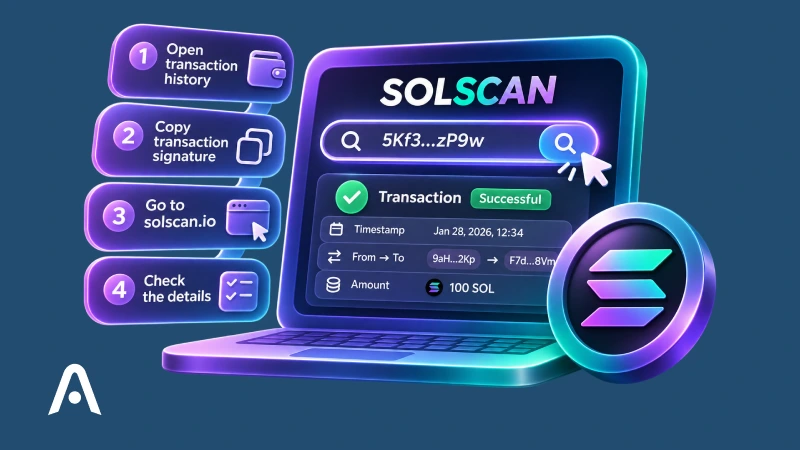
To check a Solana transaction, copy its transaction signature from your wallet or exchange and paste it into the search bar on Solscan.
The signature identifies one specific transaction. Your wallet may call it a transaction ID, TxID, or transaction hash.
- Open your transaction history: Select the transfer, swap, or other operation you want to check
- Copy the transaction signature: Use the on-chain identifier supplied by your wallet or exchange
- Visit solscan.io: Paste the complete signature into the search bar and submit it
- Review the transaction: Check its result, timestamp, recipient, assets, and balance changes
Some wallets provide a “View in explorer” link that opens the transaction directly.
A wallet address produces a different result: it opens an account page containing holdings and activity. An exchange’s internal withdrawal reference may also differ from the signature recorded on Solana, so check which identifier you copied.
How to Read a Solscan Transaction
Start with the transaction result, confirmation status, and Balance Changes to understand whether the operation succeeded and which assets actually moved.
Solscan presents several fields that answer different questions:
A successful result describes execution. Confirmation describes the network’s agreement on the record: Solana uses processed, confirmed, and finalized levels, with finalized providing the strongest confirmation.
Next, check the actual asset movement. A successful transaction could transfer a different token than expected or send funds to the wrong address. Compare the recipient, token mint address, and amount with your intended operation. For a swap, look at both the asset spent and the asset received.
Finally, distinguish network fees from other SOL movements. Creating a token account requires funding its storage balance, which is separate from the processing fee. That is why the total reduction in a wallet’s SOL balance can exceed the transaction fee shown on the page.
How to Track a Wallet on Solscan
To track a Solana wallet, search its public address on Solscan and review its holdings, transfers, and transaction activity.
You can inspect your own address or any other public address. Start with the SOL balance and Portfolio, then open Transfers to follow incoming and outgoing assets. Use the token and date filters to narrow the results.
Portfolio separates token holdings from NFTs, domains, and supported DeFi positions. Its coverage depends on the protocols Solscan supports, so the displayed positions may not capture every place an address has deployed funds.
For ongoing monitoring, a Solscan account lets you add addresses to a Watchlist and configure activity notifications. Personal labels can help you recognize saved addresses during research.
For deeper research, check Funded by and Funding Out on the account page. These fields identify an address’s initial funding source and the accounts it initially funded. A shared funding source can provide a useful lead, but it does not establish common ownership: an exchange or service may fund many unrelated wallets.
Wallet Address vs. Token Account
Your wallet address and its token accounts are related but distinct. A token account records a balance of one particular token and identifies the owner authorized to control it.
For example, your wallet can own a USDC token account with an address different from your main wallet address. A transfer may display that token account as the destination.
When an unfamiliar address appears, inspect its token mint and owner. Solscan’s “Show Token Account Transactions” setting can also reveal activity involving these associated accounts.
How to Check a Token on Solscan
Search a token’s mint address on Solscan to identify the exact asset, then inspect its supply, authorities, holders, and trading activity.
Get the mint address from the project’s official sources and compare the complete address. Names, tickers, and logos can be copied, so searching by name alone may lead to a different token.
The token page provides several useful checks:
- Supply: Review the number of token units issued and distinguish it from the amount actively available for trading
- Mint authority: Check whether an authority can issue additional units
- Freeze authority: Check whether an authority can freeze token accounts for that asset
- Update authority: Review who can change the token’s metadata, where displayed
- Token extensions: Inspect additional features that may affect how the token operates
- Holders and Markets: Examine ownership concentration and the trading pairs Solscan identifies
Active authorities can serve legitimate purposes, including the administration of stablecoins. Revoked authorities also provide only part of the picture; they do not establish that a token is trustworthy.
Read the Holders tab carefully. A large address may represent an exchange, liquidity pool, or program, while one participant may control several addresses. Holder counts therefore do not tell you how many individual people own the token.
Use these findings together with the project’s documentation and available liquidity. A displayed price or large supply value does not guarantee you can sell your position at that price.
Why Is My Solscan Transaction Failed or Not Found?
Failed means an execution error was recorded, while Not Found means Solscan cannot locate the transaction under the identifier and network you searched.
These situations require different checks. Neither message alone explains whether your wallet or exchange has finished handling the operation.
Failed Transactions
Open the transaction and inspect the error beside Result. Instruction details and program logs may provide more context.
Common causes include insufficient funds for the requested action, a swap exceeding its slippage limit, or a restriction imposed by the program involved. If an instruction fails, the transaction’s instruction changes are rolled back, although the network processing fee can still be charged.
Review the cause before submitting another transaction. Repeating the same request without addressing the error may produce another failure.
Transaction Not Found
Check that you copied the complete transaction signature rather than a wallet address or an exchange’s internal reference. Also confirm the network: a devnet transaction will not appear as a mainnet transaction.
A transaction may not have reached the blockchain, may have expired before inclusion, or may not yet be available through the explorer’s data. Cross-check the signature in another Solana explorer and review the sending platform’s status.
For an exchange withdrawal, ask the exchange for the on-chain signature if it supplied only an internal reference.
Successful Transaction, Missing Balance
Verify the recipient, token mint, and Balance Changes. An SPL-token transfer may involve a token account belonging to the recipient rather than their main wallet address.
Then check the wallet’s token visibility settings and Solscan’s filters. A wallet may hide an asset, while Solscan can filter out spam or low-value activity. If the transaction reached an exchange, its internal deposit processing may require additional time.
Is Solscan Safe to Use?
Basic lookups on the genuine Solscan website let you inspect public blockchain data without connecting your wallet or sharing private keys.
Use the correct domain, solscan.io. Searching a public address or transaction signature does not authorize anyone to move funds. Your recovery phrase is never needed for that lookup.
Keep viewing and signing separate. Some tools or linked services may request a wallet connection or transaction signature. Read any request carefully before approving it, including the permissions and asset movements involved.
Token information also needs interpretation. Solscan’s reputation labels reflect its assessment and available reports; they are not a security audit or a guarantee against losses. AI-generated summaries may contain inaccuracies, so verify important claims against the underlying records.
Public visibility also has a privacy consequence: sharing your wallet address can reveal its holdings and activity, even though it does not reveal your private keys.
Is Solscan Free?
Solscan’s core explorer is free, while an optional Premium subscription provides extended historical access and higher limits for research tools.
You can perform basic address and transaction lookups without purchasing a subscription. Creating a Solscan account adds personal tools such as labels, a Watchlist, and notifications.
As of November 2026, the published account limits include:
The history window concerns access to indexed activity through those pages. It does not mean older transactions have been deleted from Solana.
Premium also includes ad-free browsing and follow-up questions for AI Exploration. Basic AI summaries are available to free accounts.
Solscan Pro API is a separate subscription for applications that retrieve data programmatically. Website Premium does not include API access.
How to Export Transaction History From Solscan
Open an account or token page, select a supported activity tab, apply your filters, and use Export CSV to download the matching records.
Choose the dataset that fits your task:
- Transfers: Indexed token transfer records
- DeFi Activities: Recognized actions such as swaps and liquidity operations
- Balance Changes: Detailed changes in account balances
To export your data:
- Find the address: Paste the wallet or token mint address into Solscan’s search bar
- Choose the activity tab: Select the type of records you need
- Apply filters: Narrow the date range, token, direction, or action where those options are available
- Select Export CSV: Review the export details and download the file
- Check the result: Compare the dates and number of exported records with the history you intended to collect
Exports follow the selected filters and your account’s access limits. A download can therefore contain only part of a wallet’s activity, especially for busy addresses or long periods.
Use narrower date ranges when necessary, then check for missing periods or duplicate records before combining files. The CSV provides data for reconciliation and further analysis; it is not automatically a complete portfolio statement or a ready-to-file tax report.
Check Your Atomic Wallet Transactions With Solscan
Use Atomic Wallet to send or receive SOL, then search the transaction signature on Solscan to check the on-chain result.
Open the relevant operation in our wallet’s transaction history and copy its signature. Paste it into Solscan to review the result, recipient, amount, and network fee.
You can also search your public Solana address to inspect incoming transfers and current holdings. Your recovery phrase stays private throughout the process.
Our wallet gives you control over your crypto, while Solscan provides another way to examine its public blockchain activity.